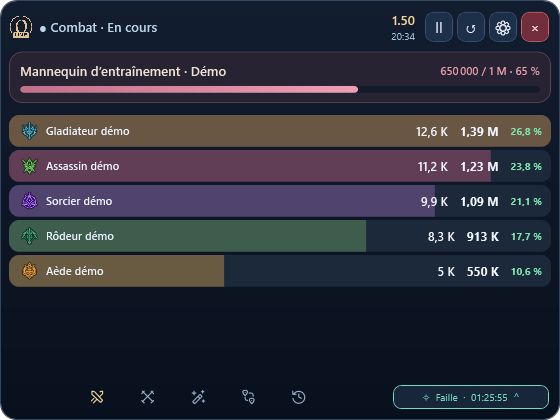
Click a preview element or follow the walkthrough. No actions are performed in your game.
ORBYNIA LIVE12:30
Simplified demo · fictional data
Install and start
Download Orbynia Live and open the .exe. Tracking starts immediately. After this first launch, Orbynia can start automatically with AION 2; disable this option in Settings → Capture if you prefer.
In Settings, choose Auto or Local for AION 2 installed on your PC. Local requires Npcap. GeForce NOW uses Windows visual capture; accuracy still needs in-game validation.
Solo tracking shows your character. In a party, rankings show identified party members. The target follows the monster you hit.
The health bar uses health received from the game. An unknown maximum stays unknown. Click a player to open skills, icons and damage share.
Pause and history
Pause suspends tracking; the reset button starts a new fight. History lets you revisit previous fights.
In Session, compare training dummy attempts and set a DPS target in Settings → Combat. HPS, aDPS and rDPS are not available yet.
Skills and PvP
Click a character in the DPS meter to inspect used spells. Local PvP displays damaging skills with icons and estimated cooldown countdowns.
The countdown starts at the first direct hit. Cooldown reductions, resets and non-damaging spells are not detected. PvP tracking is unavailable on GeForce NOW.
Map and routes
Prepare a route on the website, then find it in Live. Launch it to open a floating map independent of the DPS meter.
Move the map by its header, zoom and adjust opacity. Advancing between steps remains manual without a reliable position.
Progression coach
The coach offers your class’s PvE guide from level 1 to 45. Level capture adapts advice to your progress.
Find skill priorities, specializations, Stigmas and Daevanion, including advice for earlier levels. Manually confirm learned ranks and nodes: they are not read automatically.
Events and alerts
Choose Rift, Shugo and Beritra in Settings → Appearance to show your selected events in the bar.
Enable the popup above the DPS meter, set the alert lead time and Orbynia chime volume. Alerts follow scheduled times, without confirming actual server openings.
Account and Discord
From Session, sign into Orbynia on the website, then authorize Live. Choose your character and a Discord destination available to your account.
Share your report as one image with skills and icons. Your saved website character can be synced into Live; this does not automatically read gear equipped in-game.
Capture your equipment
In Session → My character, start Game capture and display the item tooltip during the three-second delay. You can also open an existing capture.
Review recognized items and bonuses, then import checked pieces. Hidden or unreadable data is not invented; correct or confirm uncertain values before importing.
Customize and maintain
Open the Settings popup to choose a palette, opacity and alerts. Collapse Live to keep a small bar above the game, then expand it when needed.
Available updates are announced in the app. Starting over erases local data, captures and settings after confirmation: save what you want to keep before doing this.
Explore at your own pace
Chapters remain available beside the preview. You can restart the walkthrough at any time.
ORBYNIA LIVE · 0.8.61
Your entire Live, card by card.
Explore features and open a card to discover the details.
25 features to explore
Session & sharingOCR beta
Capture my equipment
Visible gear, recognized and imported after review.01View details +Close details −
In Session → My character, Game capture gives you three seconds to display a character sheet or item tooltip. Select names and enhancements, or open a local image. OCR runs on your PC; only text lines are sent to the catalog. Multiple captures build a review preview. Confirm names, slots and enhancements, then import checked pieces. Other gear, skills and notes remain intact, and GS is recalculated. Hidden stones and bonuses are not guessed. The character page receives the import without reloading when there are no pending local edits.
Session & sharing
Synced site character
Your site equipment and build, in Live.02View details +Close details −
In Session, connect your Orbynia account and select a saved character. View equipment, enhancements, calculated GS, skills and ranks, pet, wings, equipped titles and Daevanion points. Website saves are refreshed every 30 seconds, with an immediate sync button. Selection is remembered per account. Sync goes from the website to Live; it does not detect in-game gear or change DPS or PvP capture.
Overlay & capture
Event alerts
A popup and sound before Rift, Shugo or Beritra.03View details +Close details −
A soft 0.36-second Orbynia chime replaces the Windows sound. Its volume is adjustable from 0 to 100%, with a button to preview it immediately. Settings → Appearance lets you select events, sound and a 0–30 minute lead time (5 by default). Popups appear above the DPS meter, follow its movements and stay within the screen. They close after nine seconds without requesting game focus. Simultaneous openings are queued, once each per app run. Alerts work while paused or hidden. They follow scheduled local countdown windows, without confirming actual server openings.
Session & sharing
Personal combat summary
Your damage, DPS and best skill at the end of a fight.04View details +Close details −
An optional popup summarizes your identified character. Session retains the last result with the top skill by damage and the difference from the previous comparable fight: same name, class and target. DPS uses the common encounter duration.
Combat
DPS target
A personal gauge to track your target.05View details +Close details −
Set a target in Settings → Combat. The gauge shows your average DPS, target and achieved percentage in the DPS view. It waits for your identity if needed. Set 0 to hide it; no arbitrary target is imposed.
Session & sharing
Training dummy attempts
Compare attempts and see your best DPS.06View details +Close details −
Enable training in Session or Settings → Combat. It keeps the last 50 attempts of this app run, only on dummies and for your identified character. Comparable results show the latest DPS, personal best and five latest attempts. Clearing attempts preserves combat history.
Overlay & capture
Custom keyboard shortcuts
Pause, reset, hide or switch tabs from the keyboard.07View details +Close details −
By default Ctrl + Alt + F1 pauses, F2 resets, F3 hides or shows and F4 switches to the next tab. Settings → Appearance lets you choose F1 to F12 or disable a command. Duplicate bindings are rejected and reserved keys are reported.
Session & sharing
Search and favorites
Find an encounter by target, date or duration.08View details +Close details −
Session instantly filters the 100 recent encounters by target or date dd/MM. Select a duration, favorite an encounter or show favorites only. Favorites are saved on this PC between app runs.
Overlay & capture
Solo, Party and PvP profiles
Save and restore your preferred layouts.09View details +Close details −
Menu ⚙ → Display profiles lets you save and load each profile’s size, position and appearance. Solo and Party open DPS, PvP opens PvP. This does not change capture rules; alerts, shortcuts and your target remain independent.
Overlay & capture
Rift, Shugo & Beritra
Three event countdowns in your overlay.10View details +Close details −
A compact counter rotates every five seconds. Click to see all three events with their next opening or window end. Schedules follow the Orbynia website’s local windows; they do not detect server openings. Counters also run while capture is paused. Settings → Appearance lets you choose which events appear in the bar and its popup; no selection hides the button. Alerts are configured separately.
Overlay & capture
In-app updates
New release? Update directly from Orbynia Live.11View details +Close details −
From version 0.8.45, a popup shows release notes and offers Update or Later. The download is verified before restarting, with settings and history preserved. The prompt waits for a break in combat exchanges. Check manually in Settings → Connection. Older releases need one final manual download to enable this system.
Combat
Solo & party DPS
Your character solo, your party when grouped.12View details +Close details −
In Local mode, the live view shows only your identified character and confirmed party members. Nearby players are excluded. Party changes also update skill details and damage shares. Values use K or M to keep columns readable. HPS, aDPS and rDPS are not available.
CombatLocal beta
PvP · skills and damage
Select a player and inspect skills with their icons.13View details +Close details −
The PvP tab shows outgoing/incoming damage, DPS and damaging skills in Local mode. Rows include an icon, French name, damage and estimated cooldown countdowns for all eight classes. The timer starts at the first direct impact and advances without new damage, including while paused. Multi-hits and periodic damage do not restart an active window. Click for hit and critical statistics. Cooldown reductions, resets and non-damaging skills are not detected. Players may be recognized before their names. Kills, deaths and assists are not attributed. This counter does not support GeForce NOW and still needs real combat validation.
Combat
Skill breakdown
Open a player’s skills in a compact window.14View details +Close details −
Click a player to view skill icons, damage, average DPS, hits, damage share and critical rate. The window opens to the right of the overlay when space allows. Select a skill to see detailed statistics.
Combat
Target & health bar
See the combat target and its health.15View details +Close details −
The bar displays health transmitted by the game. Percentages require a known maximum; health is not inferred from damage. Local mode offers combat filters including Boss and Dummy.
Combat
Pause & reset
Control tracking throughout your session.16View details +Close details −
Pause suspends tracking. Reset clears the combat, including the PvP counter. The red close button exits Orbynia Live completely.
Routes & map
Farm route search
Find and launch a route from the overlay.17View details +Close details −
Search by name, filter routes and access private routes with a signed-in account. Create or edit routes on the website. Quest tracking has been removed from the app.
Routes & map
Independent floating map
The route and its steps, directly above the game.18View details +Close details −
Launching a route opens its map. Move the window by its header, drag the map and zoom with the wheel or buttons. Map opacity is separate and remembered. Steps and navigation remain manual without a reliable position.
Overlay & capture
Your overlay, your way
Mini, Normal or Detailed: choose your layout.19View details +Close details −
Move the overlay and customize its appearance. Settings are grouped into Appearance, Combat and Capture. Local time is displayed below the fight duration. DPS, PvP, Routes, Progression and Session remain accessible at the bottom. Click a character to inspect their skills.
Overlay & capture
Click-through
Interact with the game through the overlay.20View details +Close details −
Ctrl + Alt + F8 toggles click-through. The settings menu also provides access to layout, sharing, critical hits, timeline, party, analysis and history.
Overlay & capture
Automatic Local / GFN capture
The app selects the appropriate capture mode.21View details +Close details −
Auto detects local AION 2 or the Windows GeForce NOW client. Local mode uses Npcap. Start capture before connecting your character to receive its identity. No game-memory access.
Calibrate the HUD if the log is not detected; Eco, Normal and Precision set the analysis frequency. Visible damage is an estimate, not a guaranteed complete measurement. Captures are neither saved nor sent. PvP is not supported.
Session & sharing
Session & history
Past encounters and your session summary.23View details +Close details −
View encounter count, damage, average DPS and duration. Select a past encounter to review, export or share it, then return to live combat. History stays on your PC.
Session & sharing
Critical hits, timeline & analysis
Explore different views of your encounter.24View details +Close details −
The menu offers Critical hits, Timeline, Party and Analysis views of received data. Available information depends on events identified by the capture mode.
Session & sharing
Export, Discord & guild
Share an encounter and access your Orbynia tools.25View details +Close details −
Export a selected encounter or share it to Orbynia and Discord. Session retrieves your linked Discord name and avatar. Authorize once in your browser, then choose an available server and channel. The connection is saved on your PC and the selected channel is synced with the website. Sharing provides a preview and requires clicking Send. Exports retain detected player names; anonymous mode has been removed. Account and guild connection remains available on this page.
No feature found. Try another word or category.
PLAN YOUR NEXT MOVE
Your routes. Your objectives.
Plan your route here, then open it in Orbynia Live. Navigation remains manual without a reliable position.
READY TO TRY IT?
Get started in three steps
Download the .exe file. The app is self-contained: no separate .NET download is needed.
For Local mode, install Npcap.Official Npcap download ↗. GeForce NOW uses Windows visual capture and does not require Npcap.
Open Orbynia Live. The overlay opens directly and waits for combat data. Select Mini, Normal or Detailed from its controls.
ORBYNIA LIVE · 0.8.98
Download and source code
Version 0.8.98 · GPL-3.0 license · Npcap not included.